
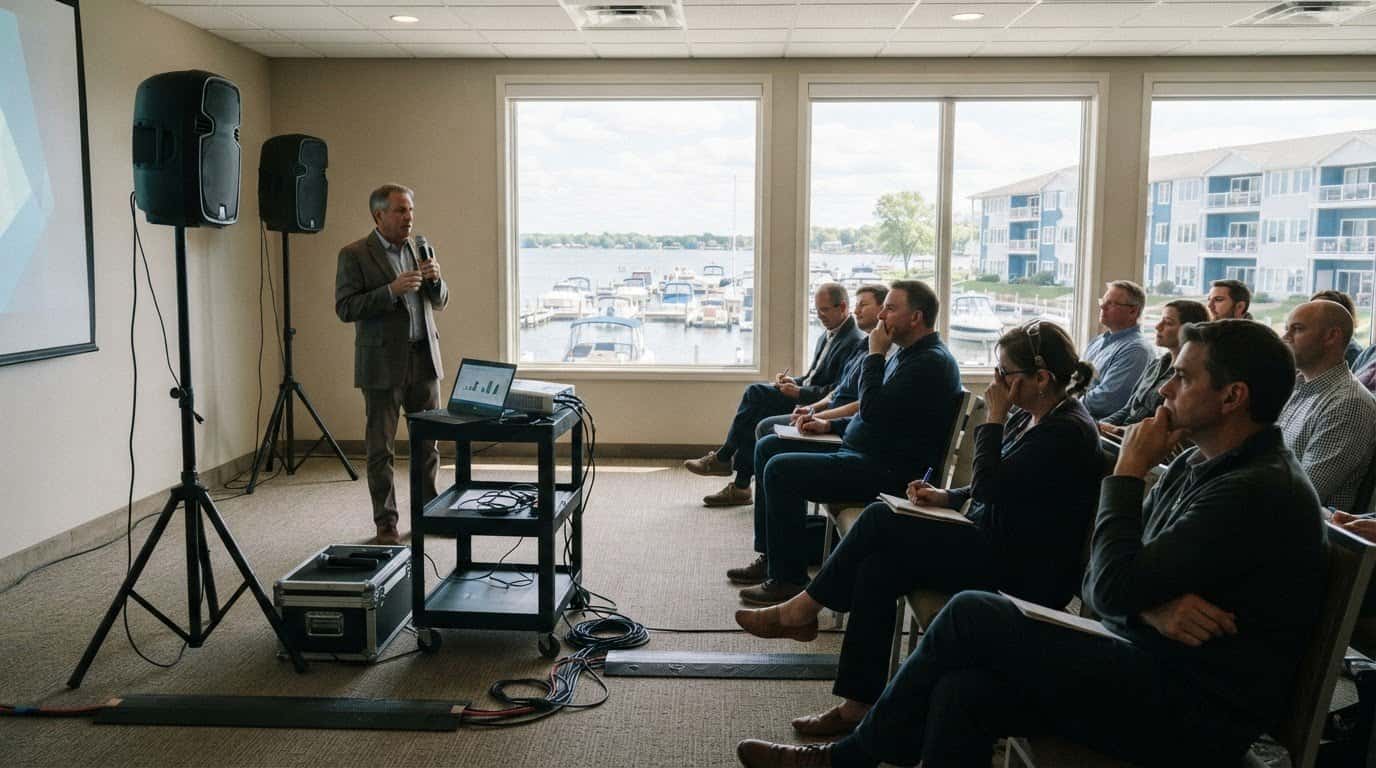
The most useful AV setup isn’t the biggest screen or loudest speaker. It’s the one that suits the room, audience, and presentation. A reliable AV equipment checklist for presentations starts with room size and lighting, then accounts for sound coverage, screen visibility, and the connections each device needs.
That balance matters whether you’re planning a small boardroom meeting or a larger event. A boardroom with 10-20 people typically needs one display and two small speakers, while events with 100 or more attendees may need line-array or distributed speakers to carry sound throughout the space.
A little preparation can prevent the familiar scramble for an adapter or the discovery that a cable won’t reach. This guide shows how to match AV equipment to the event format, check connections and cabling, and prepare backups. Follow the steps from room setup through final sound and display checks, so the presentation can take center stage.
Key Takeaways
- Match display brightness to the room’s ambient light, and choose a screen size that keeps visuals clear for the audience.
- Prepare for equipment failures with offline presentation files, spare gear, and a backup microphone.
- Scale audio and display equipment to the event format, audience size, and venue layout.
- Confirm device connections and cable lengths before setup, then secure cords to keep walkways clear.
How to Choose the Right Audio‑Visual Setup for Your Presentation or Event?
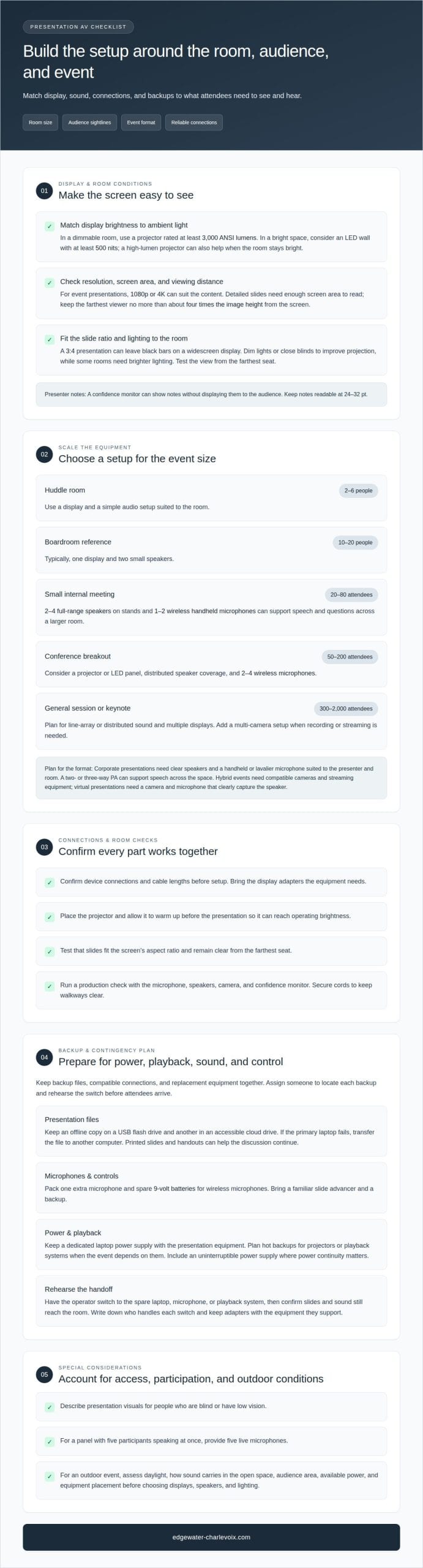
Choose a display by matching room brightness, audience sightlines, and presentation content. In a dimmable room, use a projector rated at least 3,000 ANSI lumens; in a bright space, consider an LED wall with at least 500 nits. A high-lumen projector can also help keep visuals vibrant when the room stays bright.
Match resolution to what you’ll show: 1080p or 4K can suit event presentations, while detailed slides need enough screen area for clear reading. For detailed content, seat the farthest viewer no more than about four times the image height from the screen. Keep the slide ratio in mind, too: a 3:4 presentation can leave black bars on a widescreen display.
For a corporate presentation, pair clear speakers with a handheld or lavalier microphone suited to the presenter and room. A two- or three-way PA can support speech across the space. For hybrid events, add compatible cameras and streaming equipment. For virtual presentations, prioritize a camera and microphone that capture the speaker clearly for remote attendees. In-person sessions need reliable room audio and a visible display.
For accessibility, describe presentation visuals for people who are blind or have low vision; the U.S. Department of Justice identifies this requirement for presentations with audiovisuals. A confidence monitor can help presenters follow notes, which should use readable 24-32 pt type.
Adjust lighting to keep the screen visible and the audience comfortable. Dimming lights or closing blinds can improve projection, while some rooms need brighter lighting. Include a slide remote, the right display adapters, and a confidence display if presenters need to view notes without showing them to the audience.
- Check projector placement and allow it to warm up before the presentation. This gives the display time to reach operating brightness.
- Test the screen from the farthest seat and confirm slides fit its aspect ratio. This catches small text and black-bar issues before guests arrive.
- Run a production check with the microphone, speakers, camera, and confidence monitor. This confirms each presentation element works in the intended format.
Backup equipment and contingency planning
Plan backups for the parts of a conference presentation that could interrupt the session: power, playback, sound, and control. A spare device helps only if it can take over quickly, so keep backup files, compatible connections, and replacement equipment together. Assign someone to locate each backup and practice switching to it before attendees arrive.
Keep the presentation available offline on a USB flash drive and in an accessible cloud drive. If the primary laptop fails, transfer the file to another computer. Offline content also reduces dependence on bandwidth. Keep printed copies of the slides and handouts if they could help the discussion continue.
- Pack one extra microphone for the presentation kit. A spare gives a speaker a replacement if the active microphone fails.
- Bring spare 9-volt batteries for wireless microphones. Keep them with the microphone kit so a depleted battery doesn’t interrupt a meeting.
- Use a slide advancer you already know, and pack a backup. Familiar controls and a replacement reduce delays if the first remote is lost or stops working.
- Keep a dedicated laptop power supply with presentation equipment. A compatible supply can restore power without searching through unrelated meeting gear.
- Plan hot backups for projectors or playback systems when the event depends on them. An alternate system can take over if the primary device fails.
- Include an uninterruptible power supply where power continuity matters. It provides a planned response to a power interruption instead of relying on an improvised fix.
Use rehearsal time to test the backup plan, not just the primary setup. Have the operator switch to the spare laptop, microphone, or playback system, then confirm that the slides and sound still reach the room. A written contingency plan should name who handles each switch and keep adapters with the equipment they support. This makes the response clear, even during a busy conference.
AV equipment lists by event size and format
Start with the event goal: decide whether attendees need to hear a speaker, view detailed slides, join remotely, or participate in discussion. That choice guides the equipment list and helps keep the production plan aligned with the budget. Room layout and acoustics matter, too; a sound system suited to a boardroom may not reach the back of a 300-seat ballroom.
- For a huddle room seating 2-6, use a display and a simple audio setup suited to the room. This keeps equipment practical for a focused discussion.
- For a small internal meeting with 20-80 attendees, plan for 2-4 full-range speakers on stands and 1-2 wireless handheld microphones. This setup supports speech and questions across a larger room.
- For conference breakouts with 50-200 attendees, consider a projector or LED panel, distributed speaker coverage, and 2-4 wireless microphones. This helps reach attendees across the room and supports multiple speakers.
- For general sessions and keynotes serving 300-2,000 attendees, include line-array or distributed sound, multiple displays, and a multi-camera setup when recording or streaming is needed. Each component serves a distinct audience or production need.
For outdoor events, assess the site before choosing displays, speakers, and lighting. Daylight can make projected images difficult to see, while open spaces can change how sound carries. Map the audience area, available power, and equipment placement so the setup suits the conditions.
Build a checklist around the event format: microphones, speakers, mixer, display, adapters, cables, lighting, and cameras as needed. For a panel with five participants speaking at once, provide five live microphones so everyone can be heard. A streaming plan also needs compatible cameras and a reliable way to capture the presentation.
After the event, hold a debrief while details are fresh. Record what worked, note equipment or timing issues, and update the checklist before the next event. This turns each production into practical guidance for the next room, audience, and budget.
Checking equipment connections and cabling
Test the complete signal path before attendees enter: connect the laptop to the display and speakers, then play presentation content. Confirm the picture appears, the audio is clear, and each input works. Test every device with the actual presentation files, not just a blank screen or idle microphone.
Start by matching outputs to available inputs. Check whether the laptop and display need HDMI, VGA, or separate audio, then set out the required cables and adapters. In an unfamiliar room, locate the Ethernet connection or connect to Wi-Fi, especially if the presentation includes remote participation or streaming.
- Label each cable at both ends. This helps an operator trace a connection when several devices share a table.
- Measure the display cable route before setup. For an HDMI run longer than roughly 50 feet, plan for an extender.
- Keep passive USB 2.0 cables within about 16 feet and passive USB 3.x cables within about 10 feet. Longer runs may need a different connection plan.
- Secure cords with AV or gaffer’s tape. Unsecured cables can create trip hazards, while duct tape may leave residue.
- Test the backup laptop with the same display and audio connections. A backup only helps when it can pass the presentation signal.
Before the presentation, check the room’s current configuration rather than relying on the previous meeting’s setup. Switch inputs, play a sound clip, and listen from the audience area for distortion or feedback. Confirm that the speakers receive audio at a suitable level.
Finish with a connection-by-connection run-through: open the slides, play embedded media, test the microphone, and confirm the display returns to the correct source. Keep a simple room setup diagram with the cables and adapters. This gives the client and any production partner a clear reference during setup.
Edgewater Inn
Edgewater Inn’s Wedding Venue Packages can provide a setting for a wedding gathering, while its One Bedroom Suites and Two Bedroom Suites offer accommodation options for guests. These offerings can complement event plans, but the AV setup should still suit the presentation’s room, format, and technical needs. Keeping those decisions distinct helps you plan the gathering and its audiovisual elements without assuming they share the same arrangements. Contact Edgewater Inn to discuss Wedding Venue Packages or suite options.
Bring Your Event Plans Together
Before the event takes shape, turn your technical decisions into a shared production brief. Record the presentation format, audience needs, room conditions, equipment owner, and fallback plan in one place. This reference helps presenters and organizers stay aligned as details change, without scattering key decisions across messages. A thoughtful AV equipment checklist for presentations can be the starting point for a brief tailored to the experience you want guests to have.
As you shape the wider occasion, keep the technical plan connected to the gathering’s purpose and the people attending. A considered approach leaves room to focus on bringing everyone together. Contact Edgewater Inn to plan your event, and take the next step toward a memorable gathering.
Frequently Asked Questions
How Does Venue Size and Event Type Influence AV Equipment Choices?
The venue dimensions and event purpose determine how sound, visuals, and audience participation should work together. A seated keynote needs clear sightlines and evenly distributed speech, while a workshop benefits from equipment that supports discussion and shared content. Before choosing equipment, map the seating, speaker positions, and viewing angles. Consider whether guests need to participate remotely or watch a recording afterward.
How to Plan and Execute a Successful Conference AV Setup?
Plan a successful conference setup by documenting the agenda, presentation formats, and technical needs for each session. Assign someone to manage cues and coordinate transitions, especially when speakers use different laptops or media. Send the technical rider to the venue at least two weeks before a corporate event. Then schedule a rehearsal that follows the actual run of show, including speaker entrances and content changes.
What Are Best Practices for Setting Up Corporate Event Audio Visual and Conference AV?
For corporate AV, align each technical decision with the meeting’s purpose and schedule. Give the production team the final presentation files and a clear running order, then rehearse transitions between speakers, video, and discussion. During a cue-to-cue rehearsal, confirm who advances each segment and how changes are signaled. Keep the designated operator informed about last-minute content updates to prevent confusing handoffs.
What Are the Essential Types of Audio‑Visual Equipment for Events?
Most event setups draw on sound, display, control, and lighting equipment, with the mix shaped by the program. Sound may include microphones, speakers, and a mixer; visuals may use a projector or LED display. Cameras, switchers, and confidence monitors support recording or more involved presentations. For accessibility, the U.S. Department of Justice says audiovisual presentations must describe visuals for people who are blind or have low vision.
What AV equipment is essential for a presentation?
A practical presentation kit centers on a laptop or playback device, a display connection, a slide remote, and audio equipment suited to the room. Include adapters that match the presenter’s device and save the presentation for offline use. A useful AV equipment checklist for presentations also accounts for embedded media, speaker notes, and accessible supporting materials, so the presenter can move smoothly through planned content and audience questions.
What projector or display specifications are needed for a presentation room?
Choose specifications by considering room light, image size, viewing distance, and the detail shown on screen. For a dimmable space, a projector should provide at least 3,000 ANSI lumens; bright rooms may call for an LED wall rated at least 500 nits. Event planning may use 1080p or 4K resolution. Check that the display accepts the presenter’s output and suits the room’s aspect ratio.


